AI agent
The AI agent answers visitors automatically using your website's pages and the instructions you give it. It asks clarifying questions when something is vague, files tickets for issues that need follow-up, and steps aside the moment a real teammate joins the conversation.
Turn it on
Open Dashboard → Settings → AI for the site you want.
- Toggle AI auto-reply on. Now the AI will reply to any new conversation on that site.
- Set the persona name — e.g. “Aria”, “Max”, or your brand name. Visitors see this name.
- (Optional) Write a system prompt that tells the AI who you are and what to focus on. See examples below.
- (Optional) Turn on website search so the AI can read pages on your own domain when answering — see “Grounding” below.
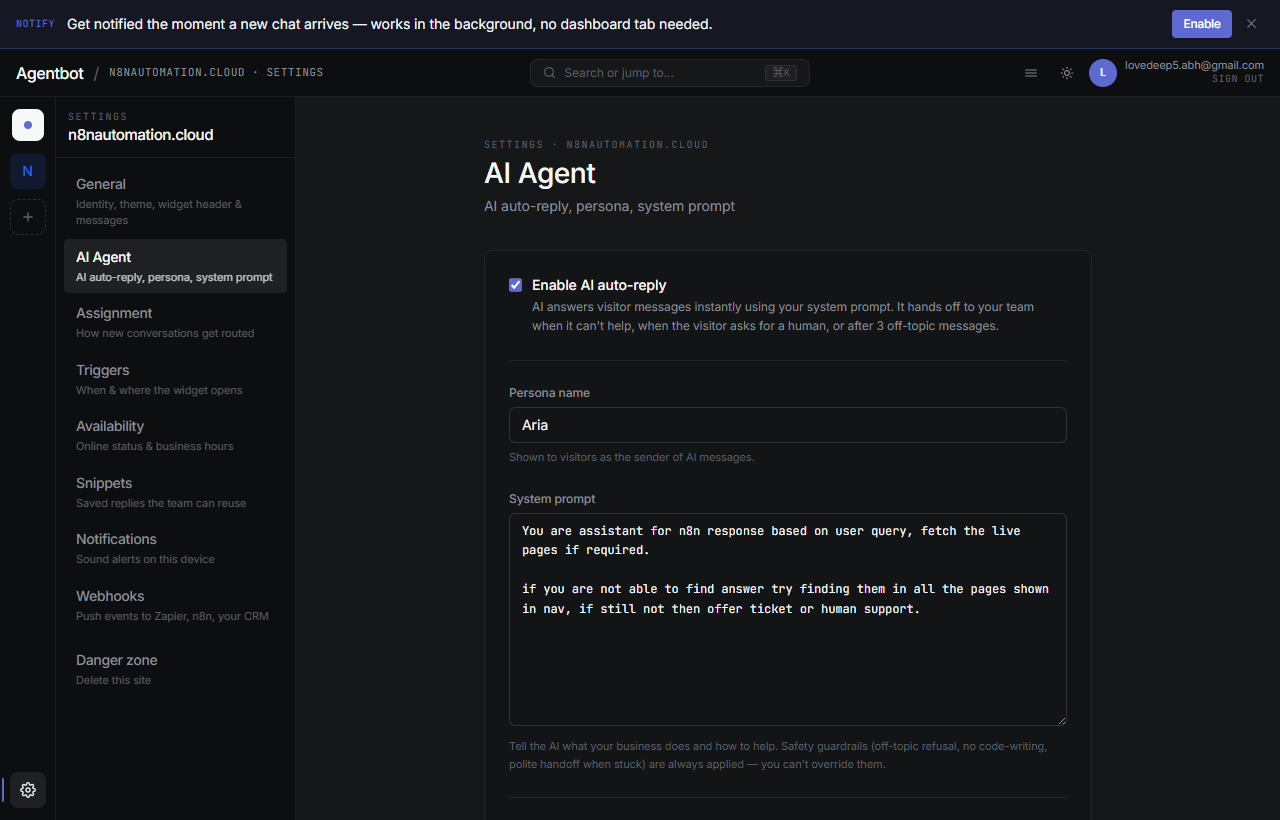
The system prompt
This is the most important field. Keep it focused — 3 to 6 sentences works well. Tell the AI:
- Who you are (business name, what you do)
- What you want it to help with
- What's off-limits (refunds, legal questions, etc.)
- Tone (formal, friendly, technical)
Example: SaaS product
You are the support assistant for Stoneware Analytics. Help visitors with
pricing, plan limits, integrations, and how to get started. We focus on
ecommerce dashboards. Be friendly and direct. Keep replies under three
sentences. Don't promise refunds or discounts — pass those to a human.
Example: Local service business
You answer questions for Bloom Salon. Help visitors with services,
prices, opening hours, and how to book. We're a small salon in Berlin.
Be warm and friendly. Always remind people they can book through our
website. Never quote prices for services you can't find on our site.Grounding: how the AI knows your business
With website search turned on, the AI can read pages on your own domain when a visitor asks a specific question (pricing, features, hours, policies). It uses two tools internally:
- List site pages — discovers what pages exist by reading your sitemap.
- Fetch page — reads the text of a specific page before answering.
This stops the AI from making things up. If the answer isn't on your site, it'll say so and either ask for clarification, file a ticket, or hand off to a human — depending on your availability mode.
https://www.example.com). Without this, the AI falls back to relying only on the system prompt.How it decides when to step in
The AI runs on every new visitor message unless a human teammate has already replied in that conversation. Once a teammate sends even one message, the AI goes silent in that conversation forever — no double replies, no fighting your own staff.
When it can't answer
The AI is conservative on purpose. It does not guess. When it doesn't know something, it does one of three things — based on your availability mode:
- Realtime or scheduled (humans available): Hands off to a human (“Let me connect you with our team”).
- Always-online (no one staffing chat right now): Says “All our agents are busy — I can raise a ticket and someone will reach out shortly”, collects the visitor's email, and files a ticket.
- Vague question: Asks one specific clarifying question with concrete suggestions (e.g. “Could you clarify? Are you asking about plans or a specific feature?”).
See Availability for how the modes change behavior.
Stops & safety
- Off-topic protection. If a visitor tries to make the AI write code, do their math homework, or argue politics, it politely refuses and brings the conversation back. After three off-topic attempts, the conversation is flagged for a human.
- No double-answering humans. Once any teammate replies in a conversation, the AI goes permanently silent in it.
- Handoff handover. When the AI flags a conversation for a human, it keeps answering simple follow-ups in the meantime so the chat doesn't feel dead — but won't flag again or pretend a human is coming if you're in always-online mode.
- Error fallback. If the underlying model is rate-limited or fails three times in a row, the AI replies with “Sorry, I'm having trouble — I've flagged this for the team” instead of going silent.
Tickets vs. handoff
The AI uses two different escalation paths:
| Path | When | Result |
|---|---|---|
| Handoff | Visitor needs a live conversation now (refund argument, technical breakage with someone watching) | Conversation flagged for the inbox queue. Pushes go to your team. |
| Ticket | Visitor reports something async (bug report, follow-up needed, can leave the page) | A ticket is filed with the full transcript. The team can pick it up after the visitor has left. |
Visitors don't need to know which is which — the AI picks based on what they've said.
Testing your AI
Open your own website in an incognito window, click the chat widget, and ask it questions the way a customer would. Try the obvious ones first (“what's your pricing”, “how do I sign up”), then try edge cases (“can you write me a poem”, “what's 17 × 23”).