Tickets
Tickets are for issues that need follow-up after the visitor leaves the page — bug reports, refund requests, account problems, anything async. The AI files them automatically. Your team works them like a normal support queue.
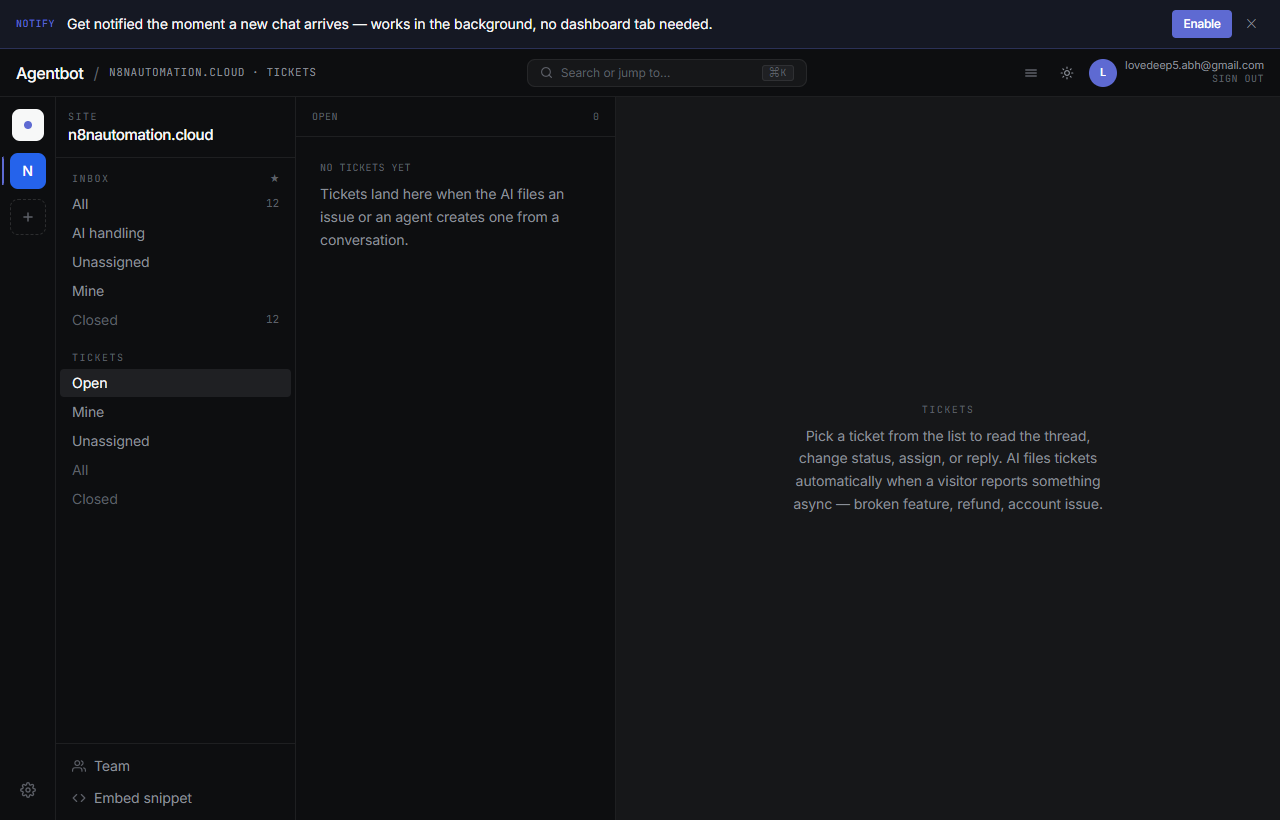
How tickets get created
Two ways:
- The AI files one automatically when a visitor reports something async — “my payment didn't go through”, “this feature is broken”, “can you delete my account”. The AI collects an email if it doesn't have one, then files the ticket with the full conversation transcript attached as context.
- You file one manually from the inbox: open a conversation → Create ticket. Useful for things the visitor didn't frame as a ticket but you want to track async.
Anatomy of a ticket
- Code — e.g.
TKT-42. Unique per site, auto-incremented. Use this when emailing the customer. - Subject — short summary.
- Description — the issue body.
- Priority — low / normal / high / urgent. AI picks based on what the visitor said; you can adjust.
- Status — open / in progress / closed.
- Requester — name + email from the original conversation.
- Assignee — teammate it's on. Defaults to whoever created it.
- Linked conversation — the chat that spawned it. Click to read the transcript.
- Comments — internal team discussion + customer-facing replies.
Priority levels
| Level | Use for |
|---|---|
| Urgent | Service down, customer locked out, money lost — drop everything. |
| High | Significant blocker for one customer, but not catastrophic. |
| Normal | Standard issue — handle within a day or two. |
| Low | Nice-to-have / minor complaint / feature request. |
Working a ticket
Open one and you can:
- Change status & priority from the top bar.
- Assign to a teammate.
- Add comments (internal or customer-facing — the customer-facing ones go to the linked chat).
- Tag with labels (custom; create them on the fly).
- Read the conversation transcript that originated it.
Filters and bulk actions
The tickets list supports filtering by status, priority, assignee, and labels. Use the filter bar above the table. Click the checkbox column to select multiple tickets and apply bulk status changes or assign them en masse.
✓Saved views
Frequently want to see “my open high-priority tickets”? Set the filters, then save the view. It pins to the sidebar for one-click access later.
Tickets vs. conversations
A conversation is a live chat with a visitor. A ticket is async work tracked separately. One conversation can spawn zero, one, or multiple tickets. Tickets persist after the conversation closes; the transcript travels with them.