Install on your website
Adding the chat widget is a single line of HTML you paste once. No build step, no plugin, no developer help required. Works on WordPress, Shopify, Wix, Webflow, Framer, Squarespace — anywhere you can drop a snippet.
Get your snippet
- 1Open the dashboard and pick your siteGo to Dashboard → Sites. If this is your first site, you'll be asked to create one — give it a name and your homepage URL.
- 2Open the Snippet panelClick the site, then open the Snippettab on the right. You'll see a one-line
<script>tag. - 3Copy the snippetClick Copy. It'll look something like this:
<script src="https://askamigo.xyz/w/YOUR_SITE_KEY" defer></script>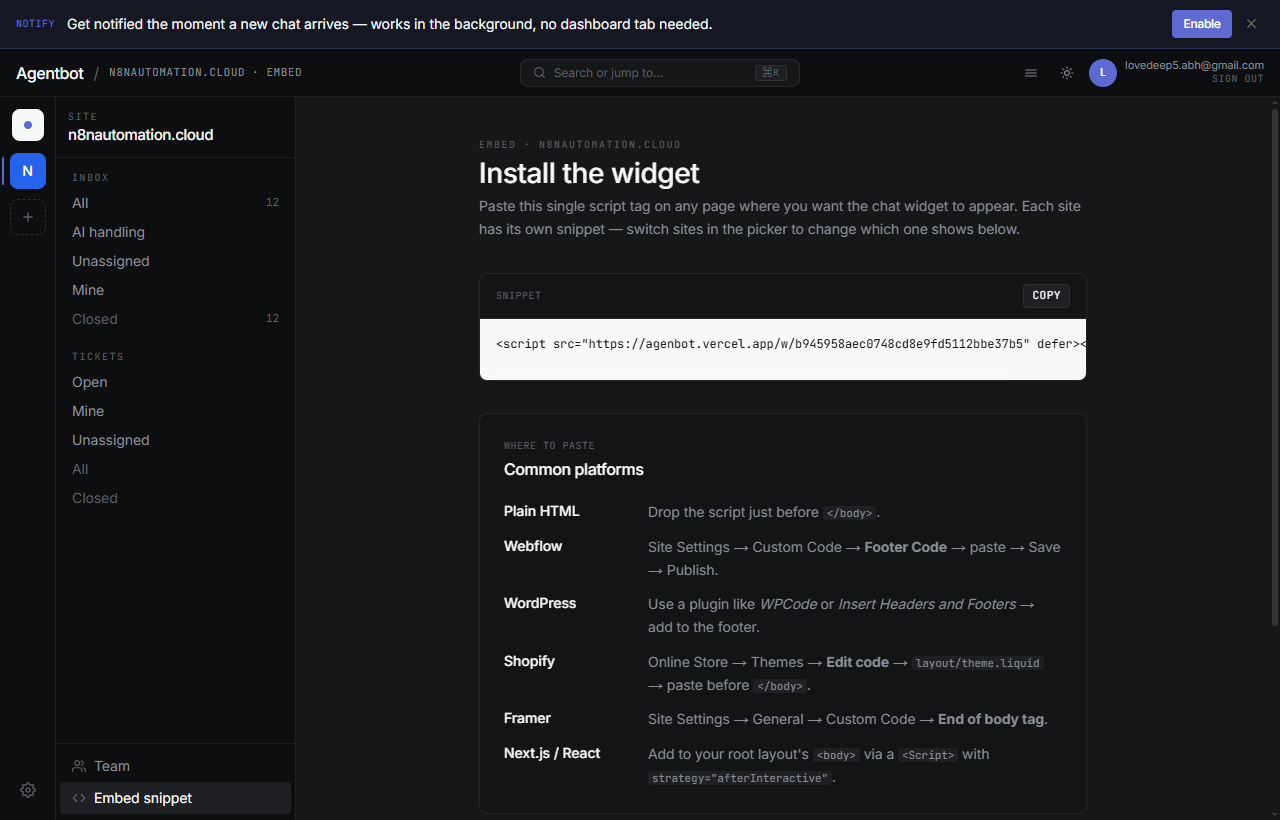
Paste it on your site
Paste the snippet right before the closing </body>tag on every page you want the widget to appear on. Most site builders have a single “Custom Code” or “Header / Footer scripts” setting that applies sitewide — that's the easiest place.
Common platforms
- WordPress: Appearance → Theme File Editor →
footer.php, or use a plugin like “Insert Headers and Footers”. - Shopify: Online Store → Themes → Actions → Edit code →
theme.liquid, paste just before</body>. - Wix: Settings → Custom Code → Add Custom Code → Body, end.
- Webflow: Project Settings → Custom Code → Footer Code.
- Framer: Site Settings → General → Custom Code → End of
<body>. - Squarespace: Settings → Advanced → Code Injection → Footer.
Test it
- 1Load your website in a regular browser tabRefresh the page. Within a few seconds you should see a chat bubble appear in the bottom-right corner.
- 2Send a test messageClick the bubble, type “hello” and hit enter. The message lands in your dashboard inbox immediately. If your AI is on, it should reply within a few seconds.
- 3Check the inboxOpen Dashboard → Inbox. You'll see the conversation at the top with your test message.
✓See it in your inbox? You're done
Install is finished. Next, set up the AI agent so it can auto-reply, and install the app on your phone so you get notifications.
Troubleshooting
The widget doesn't appear
- Hard-refresh the page (Ctrl/⌘ + Shift + R). Some site builders cache aggressively.
- Open browser DevTools (F12) → Console tab. Look for red errors mentioning
askamigoor your script URL — they usually point at the cause. - Make sure the snippet is exactly one line, with the same
YOUR_SITE_KEYfrom the dashboard. A typo silently fails.
The widget appears but won't send messages
- Check your browser is not blocking third-party scripts.
- If you're on a custom domain, ensure your security headers (Content-Security-Policy) allow scripts from
askamigo.xyz.